
Create a new order in the portal
Create a new order as soon as you want to realize an order with your customers. You have the option to send orders to customers for confirmation and thus keep a good overview of your orders and their status. An order is the basis for invoicing. Please fill out an order for each project or service for which Smart should issue an invoice.
To do this, please click on the +New order button on the dashboard. You can access the order view in various ways:
Dashboard
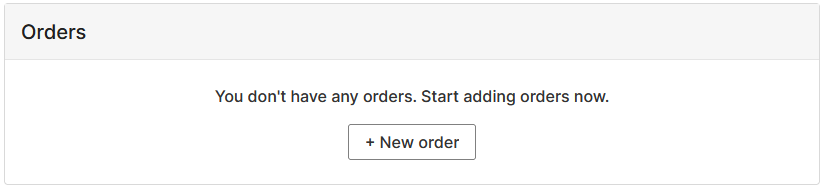
Order-Section

When you create an order, please pay close attention to the data you enter, such as the order and service description, as these are used exactly for invoicing and communication with the customer. In the next step, during the smart confirmation, we will check the order. If necessary, we will make minor adjustments and, of course, will not make any changes that affect the content of your orders and agreements with customers (service content or amounts).
We will guide you through all the steps of order creation here:
Customer
Type the first 3 letters of the customer to select from the customer database or create a new customer. If you have not yet done this step, please go to the previous chapter Create customers in this guide.
Contact person for customer
The contact person is always linked to the order and must therefore always be entered, even if the customer has already been created. The contact person is only visible to you and does not appear in the database.
You can also enter two e-mail addresses to which the invoice should be sent. Once in the contact person field and once under the customer's basic data (see previous chapter 'Create customer - email for invoice'). The e-mail addresses can also be the same. In this case, only one e-mail is sent.
Sector (activity)
In the next step, please select the sector and the appropriate activity for your job. You can find further information in the job descriptions.
Order
Place of performance
Please choose between EU area, Austria and third country (non-EU country).
The correct VAT rate for your order will be calculated based on the parameters 'Activity' and 'Place of performance' as well as the customer data.
Project name
This is a text field that appears on the invoice and provides space for a project number or an abbreviation, for example. Please keep the information short and describe details of the services in the "Description of the order" field.
Please note: Your name will not appear on the invoice. If it is important that your name appears on the invoice, please write your name either under the project name or the description of the order.
Special agreement
This is not a mandatory field. Here you can describe special conditions with customers, if these are to be contractually agreed.
Description of the order
This is the field in which the description of your service is entered. Example: Teaching activity for event X. Please only enter text here and no tables or similar, as these cannot be displayed well. For a detailed overview of your work, please use the 'New work type' fields or add an attachment.
Additional documents such as timesheets or other details can be sent to the customer via the portal as part of the order confirmation.
Add new service type
Here you can specify several services that belong to one order and choose between different units (days / flat rates / hours / months / weeks and other units), which are added together and listed on the invoice.
Performance period
When does the order take place? The performance period also defines when the order can be completed. Orders whose performance period is in the past and for which an invoice has been issued can be completed.
Currency
It is currently possible to create invoices in the following currencies:
EUR, USD, CAD, PLN, GBP, CZK, CHF, AUD, DKK, JPY, SEK.
If your customer would like the invoice in a different currency, please contact our advisory team.
Offer valid until
Define until when customers can confirm your order. After the deadline, the order will change to "Rejected" status. Please check regularly whether your customers have confirmed their orders in good time.
Skip the customer's confirmation and go straight to invoicing
This function allows you to skip the customer confirmation and go straight to invoicing. Please select a suitable reason for skipping.
Please note: If there is no other confirmation from the customer, the order will not receive a payment guarantee and therefore does not count towards the available budget.