
Budget overview
The personal budget is the centerpiece of your activity at Smart. It allows you to plan your business and have a complete overview of your activity. The Smart team is happy to offer support and advice on budget planning, not just at the start, but on an ongoing basis throughout your work.
You can find your budget overviews under the menu item "Budgets".
You can have one or more budgets, depending on whether you work for SMartAt e. Gen. or smart@work GmbH, or whether you are part of a collective budget.
You can open the desired budget by double-clicking on it.
You will find two terms in the overview:
- Your budget: this is the budget available for your employment and for travel expenses in the respective month. This budget is based on your orders with a payment guarantee or on orders that have already been paid.
- Budget for expenses: this is the available budget for expense reimbursements and direct payments. This budget is based on the payment balance and assumes that your employment is covered in the respective month.
The monthly view
To view your incoming and outgoing budgets for the month, click on the relevant month and the details will appear in individual lines.
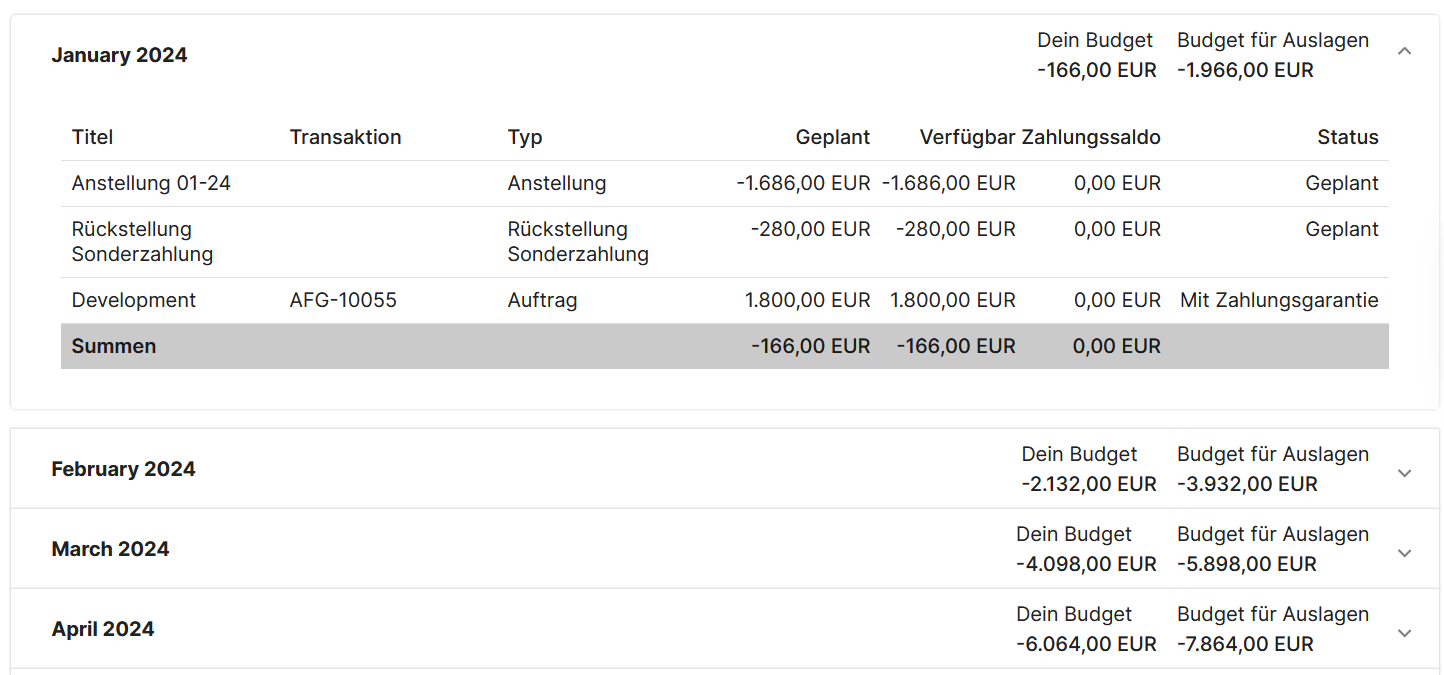
In the monthly view, you can see all incoming and outgoing payments as part of your activities at Smart.
By clicking on the line in the budget, you can open the following entries in the budget
- Orders (opens the order view, if the invoice has already been issued, the invoice view)
- Employment costs (opens the employment overview)
- Expense reimbursements (opens the confirmed expense form)
For example, the project name is listed under Title for orders, and the respective month and year for employment.
Tip! When creating your order, choose a project name with recognition value for your budget!
Special features:
- Orders with partial payments or recurring payments are divided into the months of invoicing in the budget to provide a more realistic overview of the current status of the budget.
- Provisions for special payments are approximate calculations based on the salary categories, which help to calculate the necessary amount for June, November and the end of the employment on a monthly basis. More on the calculation of special payments via the guide.
- Budget transfers cannot be opened after they have been released, so it is also advisable to name them with recognition value.
Lines in the budget
Orders
Orders with a payment guarantee appear in both the planned and the available budget. If an order has been paid, the incoming payment appears under Payment.
Orders without a payment guarantee appear in the planned budget, but are not in the available budget. The amount is only available after invoicing and receipt of payment.
Employment costs
The employment costs are initially entered in your budget in the "Planned" and "Available" columns as outgoing payments for the duration of your employment in accordance with the total costs from the employment category, and are updated after the monthly payroll run with the exact amount actually settled in the Payment column from payroll accounting. Subcategories of employment and travel expenses do not receive their own amount when paid. The total appears in the line for employment.
Subcategories of employment are:
- Special payment provision
- Special payment
Reimbursement of expenses and direct payment
If your reimbursement of expenses or direct payment to third parties has been confirmed by Smart, it will appear in the budget in the month in which it was confirmed. The expenses are deducted net from the budget , you receive the gross amount (incl. VAT) in your account. This means that the input tax refund is no longer a separate line in the budget.
RK - Travel expenses
Travel expenses that you request in the Smart Portal are paid out with your salary and appear in the portal as a payment under your employment costs in the respective month. You will find the travel expense receipt in the expense reimbursement section and the payment details on your payslip.
Budget transfer - Outgoing
If you work with other Smart members to whom you send budget, you will find these outgoing payments as "Budget transfer" in the monthly overview. For you, such an outgoing payment is free of charge and VAT. The receipt of the budget transfer is also VAT-free for the other person and no additional Smart fee is charged.
Budget transfer - Incoming
If you work with other Smart members who send you a sum from their budget, you will find these incoming transfers as budget transfers in the monthly overview. An incoming budget transfer is free of charge for you, there is no Smart fee or sales tax.
Columns in the budget
"Planned budget"
Total of all planned confirmed orders and employment costs.
"Available budget"
All orders with payment guarantee and paid orders without payment guarantee, employment costs, confirmed expenses.
"Payment balance"
All actual incoming and outgoing payments on the Smart Bank account that have been allocated to your budget.
No comments to display
No comments to display